
My uConsole computer finally arrived after a 10-month delay. I started kicking the tires by installing fun software on it, and quickly realized it’d run better if it looked cool. Here’s how I did it.
Change the boot image
Raspberry Pi OS uses Plymouth to make show a boot splashscreen. By default, it displays the image file at /usr/share/plymouth/themes/pix/splash.png. I’m sure there’s a “better” way to do this, but I simply replaced that file with my own 1280x720 image (to match the screen’s native resolution):
$ cd /usr/share/plymouth/themes/pix
$ sudo cp splash.png splash.png-dist  # Keep a backup
$ sudo cp myimage.png splash.png
$ sudo plymouth-set-default-theme --rebuild-initrd pix
That last line rebuilds the initrd image so that the kernel will use the new image.
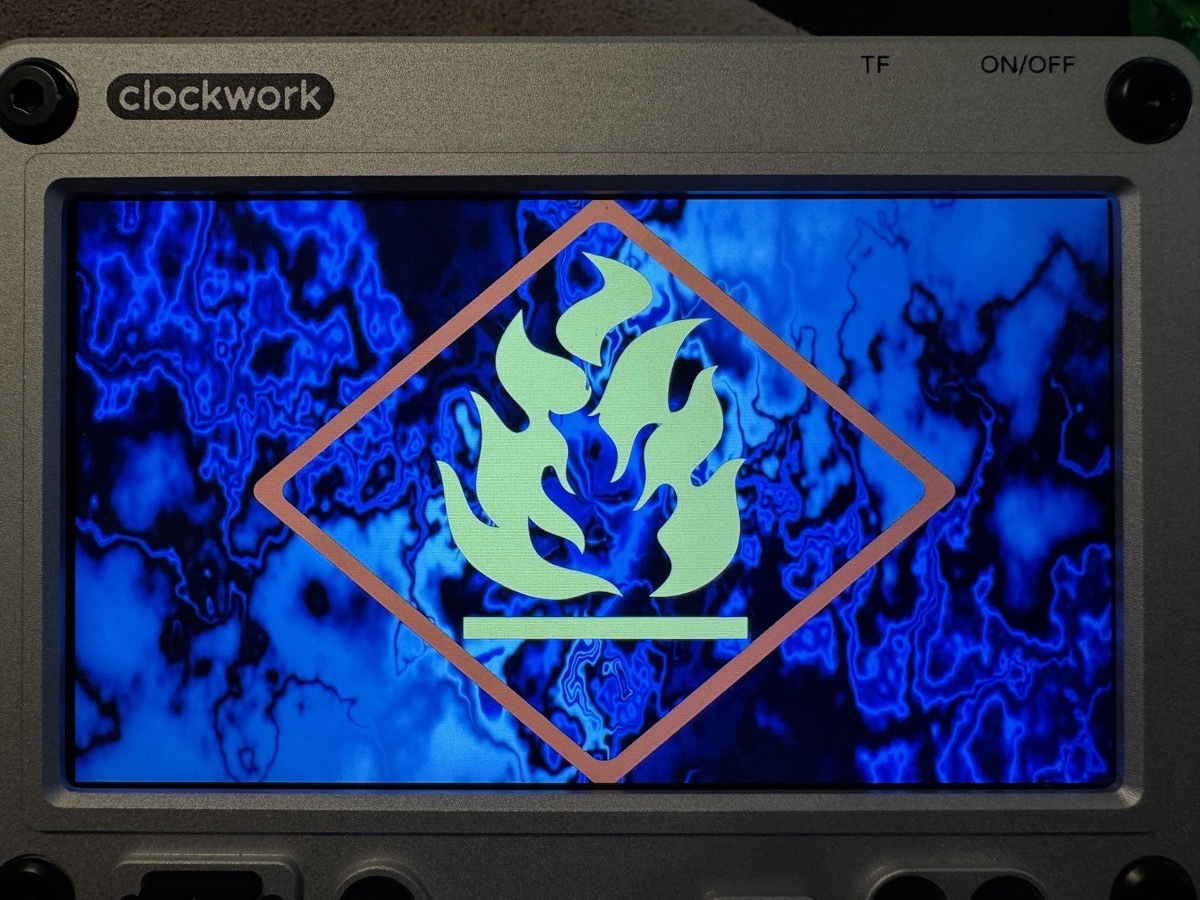
Change the lock image
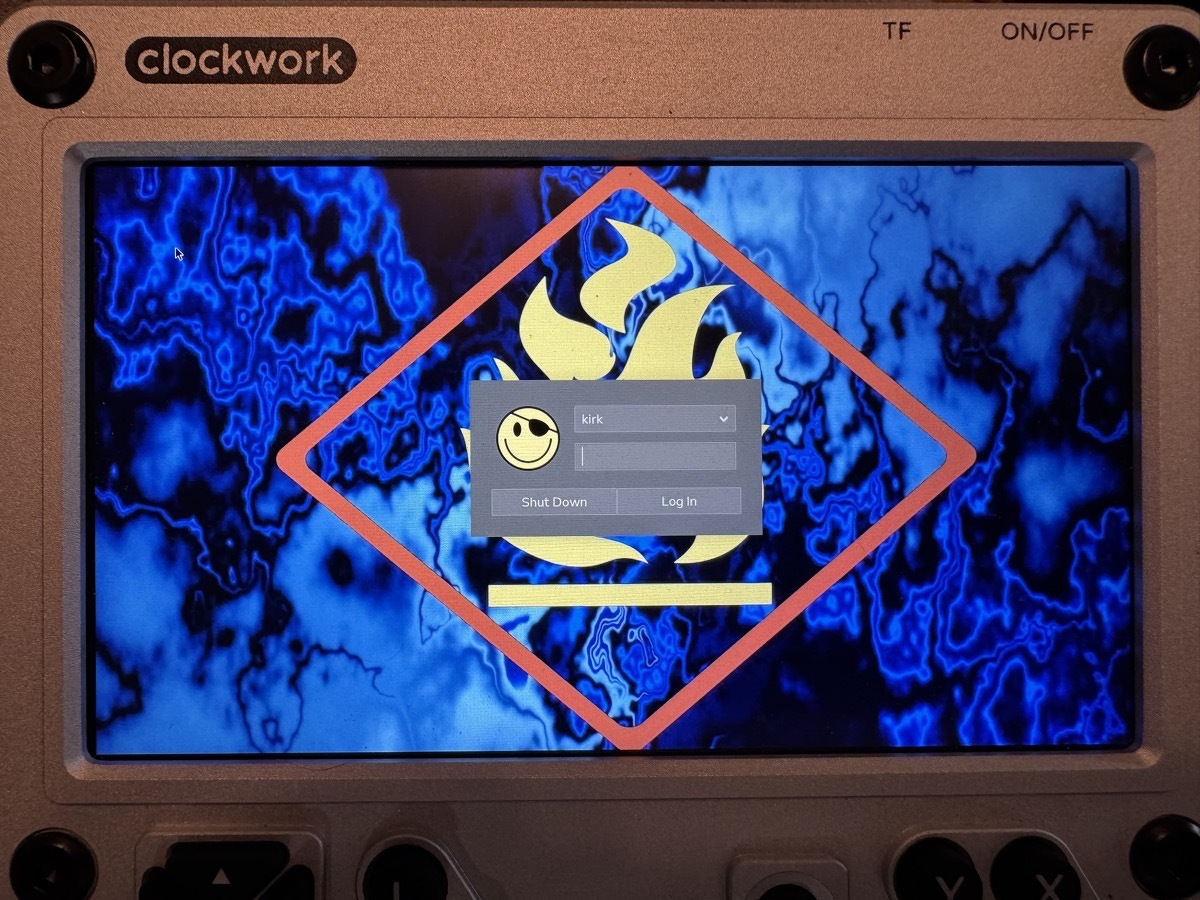
I use Wayland instead of X11, and that setup uses pi-greeter to show a lock screen. That requires editing /etc/lightdm/pi-greeter.conf. I copied my new user image to /usr/share/plymouth/themes/pix/smiley.png, which isn’t the right place to put it exactly, but has it living next to the splash.png I installed in the previous step. Then I backed up pi-greeter.conf and edited its default-user-image and wallpaper values like so:
--- pi-greeter.conf-dist        2026-06-22 18:52:53.702242786 -0700
+++ pi-greeter.conf     2026-06-22 18:55:06.519726407 -0700
[@@](https://micro.blog/@) -1,7 +1,7 [@@](https://micro.blog/@)
 [greeter]
-default-user-image=/usr/share/raspberrypi-artwork/clockworkpi.png
+default-user-image=/usr/share/plymouth/themes/pix/smiley.png
 desktop_bg=#000000
-wallpaper=/usr/share/rpd-wallpaper/RPiSystem_dark.png
+wallpaper=/usr/share/plymouth/themes/pix/splash.png
 wallpaper_mode=center
 gtk-icon-theme-name=PiXflat
 gtk-font-name=Nunito Sans 12
Note that usr/share/raspberrypi-artwork/clockworkpi.png doesn’t even exist by default, so the lock screen falls back to a boring silhouette of a person.
Make the screen automatically lock
I’m teaching my coworkers not to trust leaving their laptops unlocked, and I have to practice what I preach. I want my screen to automatically lock if I ever forget to manually do it. That’s easy! Edit the ~/.config/labwc/autostart file like this:
--- autostart-dist      2026-06-22 19:12:18.204495749 -0700
+++ autostart   2026-06-22 19:12:12.708859097 -0700
[@@](https://micro.blog/@) -1 +1 [@@](https://micro.blog/@)
-swayidle -w timeout 600 'wlopm --off \*' resume 'wlopm --on \*' &
+swayidle -w timeout 300 'swaylock -f -p' timeout 600 'wlopm --off \*' resume 'wlopm --on \*' &
The extra timeout 300 'swaylock -f -p' locks the screen after a 5 minute idle timeout.
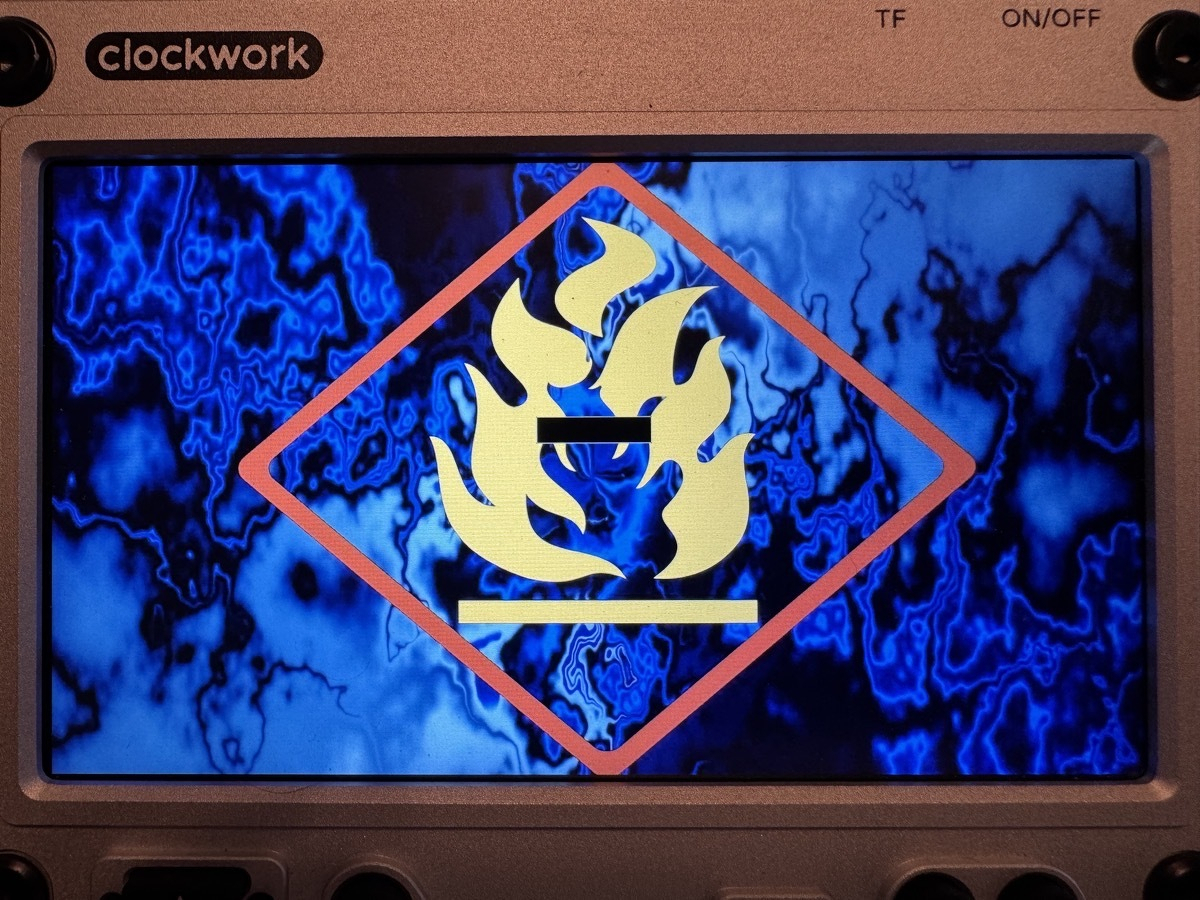
Ta-da!
And that’s it! Reboot and enjoy your cool graphics and slightly more secure setup.

